The quiet inbox breach: how malicious forwarding rules work
A stolen login can become a durable copy of selected email. Learn what forwarding rules expose, where Gmail and Outlook hide them, and how to remove them safely.
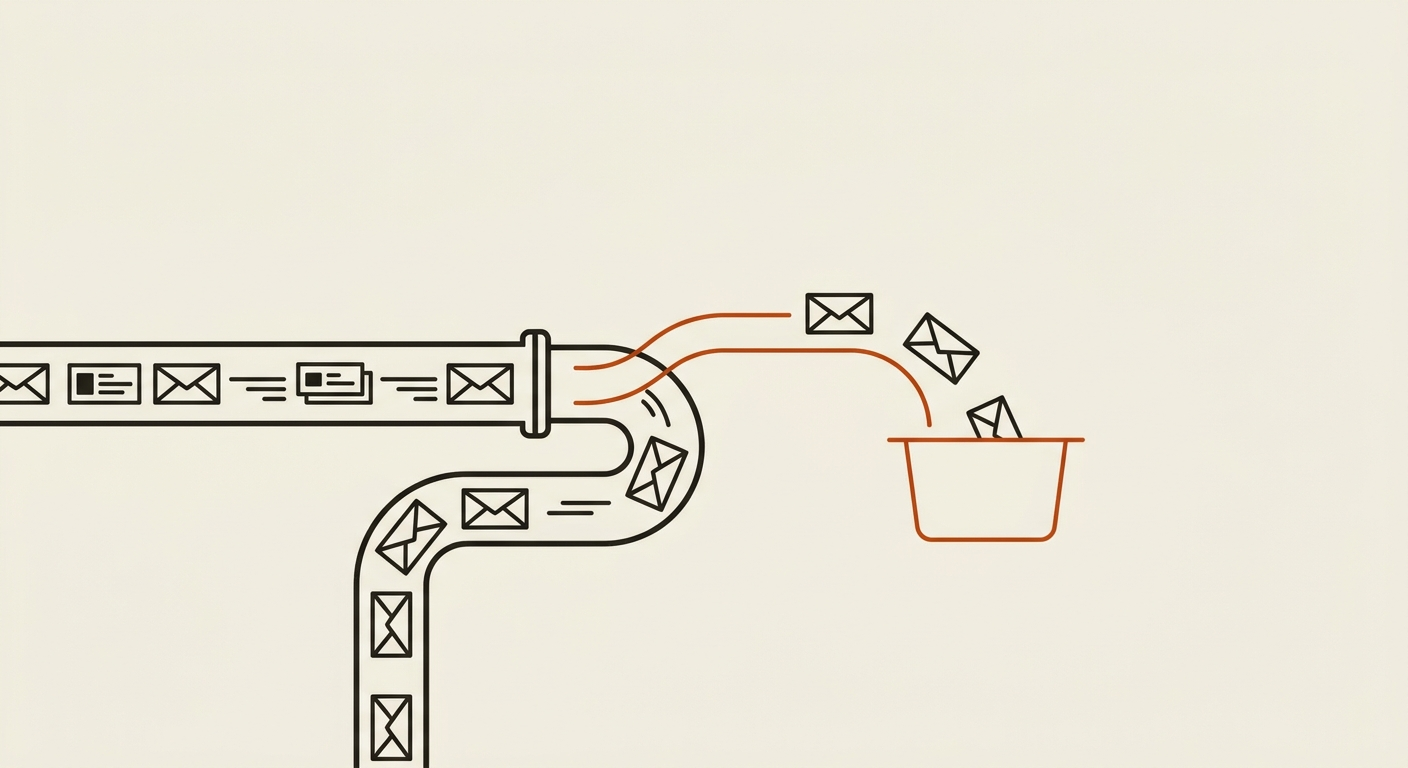
Email rules are ordinary automation. They sort newsletters, move receipts, flag a manager’s messages, or forward mail to another account. That usefulness is exactly what makes them attractive after an account compromise: the attacker can use the mailbox’s own machinery to keep receiving information.
The result does not have to look like a dramatic takeover. Your password may still work. Your messages may still arrive. The attacker may never send a message as you. A narrow rule can simply copy future messages matching a useful condition and leave the rest of the mailbox alone.
The important distinction. Changing a compromised password blocks the old credential. It does not, by itself, prove that mailbox settings created during the compromise are gone. Account recovery should include both securing access and inspecting persistent settings.
What a malicious forwarding rule actually does
A rule has two core parts: a condition and an action. The condition decides which incoming messages match. The action decides what happens next.
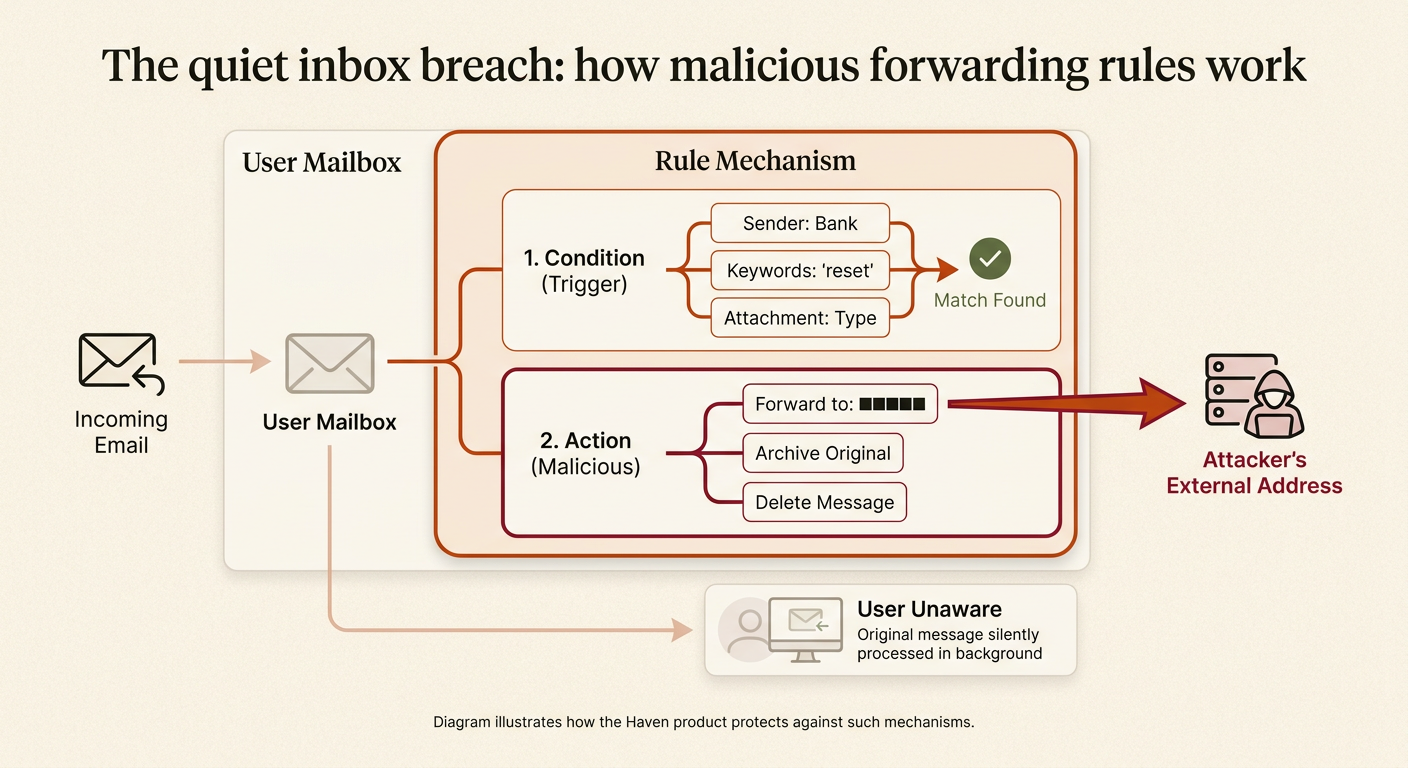
Google documents two forwarding mechanisms in Gmail: forwarding all new non-spam messages, or creating a filter that forwards only messages matching chosen criteria. Gmail can also keep the mailbox copy or archive it automatically. Outlook rules similarly combine conditions with actions such as moving, deleting, forwarding, or redirecting a message.
A broad rule is easy to notice and sends the attacker plenty of noise. A targeted rule can be more valuable. It might match a bank’s sender address, words such as “verification” or “reset,” messages from a payroll provider, or correspondence with a particular person. Pair forwarding with archive, delete, or “stop processing more rules,” and the victim may not see the message where they expect it.
Rules generally act on incoming mail after they are created. That limits what an ordinary forwarding rule exposes by default, but the future stream can still include password-reset links, tax documents, travel details, invoices, private attachments, and security alerts.
Why the breach can outlast the obvious intrusion
The rule lives in the mailbox service, not in a single browser tab. Closing a suspicious session or replacing a computer does not necessarily remove a server-side rule. Microsoft describes mailbox rules as a persistence mechanism and notes that synchronized rules return when a fresh Outlook installation connects to the mailbox.
This is why “I changed my password” and “I removed the forwarding rule” are separate recovery steps. The first removes a way back into the account. The second stops the mailbox from continuing an action that was already configured.
There can also be more than one forwarding surface. A provider may offer account-wide forwarding, user-created filters or inbox rules, mailbox delegates, connected apps, and organization-level routing. Checking only the most obvious forwarding switch can miss a targeted filter sitting elsewhere.
Signals worth taking seriously
None of these proves an attacker was present, but each deserves an explanation:
- A forwarding banner or destination you do not recognize. Gmail says it displays a forwarding notice for the first week after forwarding is enabled.
- An unfamiliar filter or rule — even one with a boring name. Inspect its conditions, actions, exceptions, and position in the rule list.
- A rule that forwards or redirects externally, archives or deletes matches, marks them read, or stops later rules from running.
- Security codes, invoices, or messages from a particular sender repeatedly appearing in Archive, Deleted Items, Trash, or an unexpected folder.
- Recovery addresses, delegates, app passwords, connected applications, or signed-in sessions you cannot account for.
Where to check in Gmail
On a computer, open Settings → See all settings. Review Forwarding and POP/IMAP for an account-wide destination. Then review Filters and Blocked Addresses for rules that forward, archive, delete, or mark messages as read. Google specifically advises changing the password and disabling forwarding when a forwarding notice appears unexpectedly.
Where to check in Outlook
In new Outlook, Outlook on the web, or Outlook.com, open Settings → Mail → Rules. Open every rule you did not create and examine the complete condition and action. Microsoft also recommends looking for unexpected rules or suspicious names when investigating a compromised mailbox.
For a work or school mailbox, the visible rule list may not show every administrator-controlled forwarding setting. Your administrator can inspect mailbox forwarding and tenant audit data that an ordinary user cannot.
How to recover without leaving the door half open
If this is a work, campaign, school, or managed organization account, contact the administrator or security team early. They may need to preserve audit evidence, check other mailboxes, and remove a rule centrally. For a personal account, use a device you trust and work through the entire account — not just the rule.
- Record what you found. Note the forwarding destination, rule conditions, actions, creation clues, and affected folders before deleting it. Do not send private message contents to anyone who does not need them.
- Disable or delete the unauthorized rule. Check account-wide forwarding and the complete filter or rules list. If you are unsure whether a legitimate workflow depends on it, disable it first while you investigate.
- Change the account password. Use a new, unique password from a trusted device. Sign out other sessions where the provider offers that control.
- Strengthen sign-in. Turn on multifactor authentication; prefer a passkey or security key when the account supports one. Replace unknown app passwords and recovery methods.
- Review adjacent access. Inspect delegated mailbox access, connected applications, third-party OAuth grants, POP/IMAP access, send-as addresses, and recovery email or phone settings.
- Look for impact. Search Archive, Trash, Sent, and other folders for matching messages. Review recent security events and decide whether banks, employers, contacts, or other affected parties need to know.
- Keep watching. Pay attention to new forwarding notices, fresh rules, unexpected sign-ins, and account-recovery changes. A rule can be one part of a larger compromise.
Do not stop at deletion. Removing the rule stops that behavior. It does not revoke a stolen password, terminate every session, remove an authorized malicious app, or undo messages already copied. Treat the rule as evidence of account access unless you can establish a benign origin.
The additional control available to organizations
Organizations do not have to rely only on each user noticing a bad rule. Microsoft warns that automatic forwarding to external recipients increases takeover risk and provides policies to block or limit it. CISA’s Microsoft 365 security baseline likewise recommends controlling automatic forwarding to external domains because it can be used for data exfiltration and persistent access.
A sensible organization-level posture is to disable external automatic forwarding by default, grant narrow exceptions where there is a documented business need, alert on newly created forwarding rules, and audit mailbox settings after any account compromise. That turns a quiet per-user setting into something the organization can see and govern.
The broader lesson is simple: account security is not only about who can sign in now. It is also about what a person was able to configure while they were inside. Recovery is complete only when both have been checked.
Primary sources
- Google Gmail Help: Automatically forward Gmail messages to another account
- Microsoft Support: Manage email messages by using rules in Outlook
- Microsoft Learn: Detect and remediate Outlook rules and custom forms injection attacks
- Microsoft Learn: Configuring and controlling external email forwarding in Microsoft 365
- CISA: Microsoft Exchange Online Secure Configuration Baseline